Studio Queues Team · Last updated July 17, 2026
Stream alerts art commission streams need beyond Twitch follow/sub alerts. Studio Queues' three overlay endpoints: Commission Alert, Queue, Now Working.
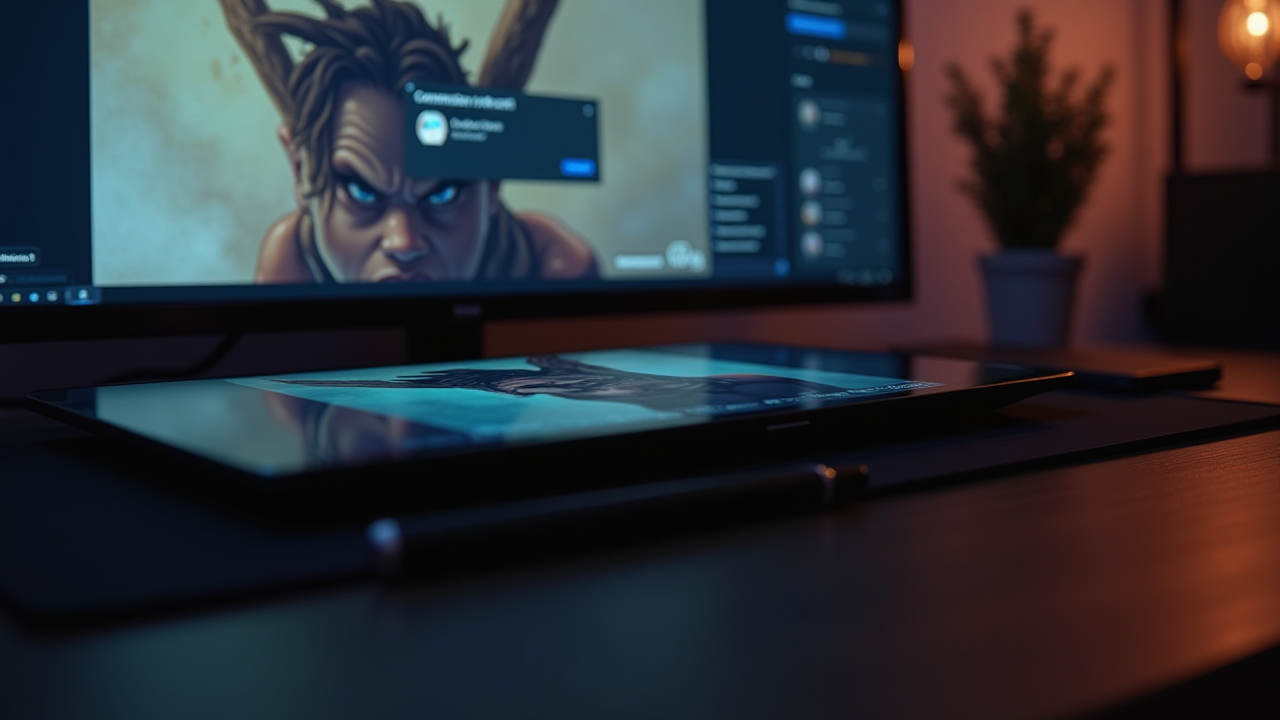
Stream alerts are the moments when a stream's UI comes alive: a follow, a subscription, a donation, an alert popping in a corner with a sound effect. On a gaming stream, these are the whole engagement loop. On an art stream, the standard follow/sub/donation alerts are only half the story, because the events that most matter to your channel (a new commission slot claimed, a piece delivered, the queue opening) are not events Twitch or a generic alert service knows about. This guide covers what stream alerts art commission streams actually need beyond the generic set, how Studio Queues' three overlay endpoints plug that gap directly into OBS, and how to set them up in a few minutes.
Generic stream alert services (Streamlabs, StreamElements, and similar) handle the platform-native events well: new follower, new subscriber, gifted subs, cheers, raids, donations. These matter, and every art streamer should have them. What they cannot do is trigger on events specific to your commission workflow, because those events do not exist inside Twitch or the alert service. They exist inside whatever tool you use to run your commissions.
The events specific to stream alerts art commission workflows benefit from covering:
None of these events fire off a Twitch webhook. They are commission-workflow events that need to be pulled from wherever your commissions actually live.
Studio Queues provides three dedicated overlay endpoints designed specifically for stream alerts on art commission streams. Each is a browser source URL you drop into OBS, and each pulls live from your Studio Queues account. Setup follows the same pattern as any browser source: add the URL to a browser source in OBS, size and position it, and it runs.
The three endpoints:
Commission Alert. A popup-style alert that fires when a specific commission event occurs (new order, milestone completion, delivery). Configure the URL as a browser source in a scene and it will render only when an event fires, staying invisible in between. The endpoint is:
https://studioqueues.com/overlay/YOUR_ARTIST_TOKEN/alertReplace YOUR_ARTIST_TOKEN with your Studio Queues artist token. Treat the URL like an API key: it should not be shared publicly or shown on stream.
Queue List. A persistent overlay that shows the current commission queue: who is in line, what they ordered, how many slots remain. Runs continuously in a scene as a live queue widget. Endpoint:
https://studioqueues.com/overlay/YOUR_ARTIST_TOKEN/queueNow Working. A persistent overlay that displays whatever commission is currently in progress, updating live as you move between commissions during a stream. Perfect for a small corner widget so viewers always see the piece being worked on. Endpoint:
https://studioqueues.com/overlay/YOUR_ARTIST_TOKEN/now-workingAll three endpoints are customizable from the Studio Queues overlay settings dashboard at studioqueues.com/artist/settings/overlay, where colors, backgrounds, and fonts can be adjusted to match your stream branding. The URLs themselves do not change when you update the styling; only the appearance of the rendered widget changes.
Because these are event-driven overlays pulling directly from your Studio Queues account, no manual updates are needed during stream. Someone claims a slot mid-stream, the alert fires and the queue list updates. You mark a piece delivered, the alert fires. Your stream reflects your actual commission state in real time, without you touching anything.
Setup is the standard OBS browser source flow. For the full step-by-step OBS browser source setup covering size, position, transparency handling, and troubleshooting, see the full OBS browser source setup walkthrough. The specific settings for the three Studio Queues endpoints:
body { background: transparent; margin: 0; overflow: hidden; } to force transparency.Repeat for each of the three endpoints. Position the alert overlay wherever transient alerts should appear (usually upper corner), the queue list wherever a persistent queue view makes sense (usually side or bottom bar), and the now-working widget wherever you want the current-commission indicator (usually opposite corner from your facecam). Test each in preview mode before your first live stream to confirm sizing and transparency.
Stream alerts are one layer of the stream engagement stack. Chat commands are the other. Alerts fire on events (something just happened); chat commands answer questions (a viewer is asking about your queue right now). Both layers pull from the same Studio Queues account data, so the alert that fires when a slot is claimed reflects the same queue state that the !queue chat command returns. For the chat command sibling side of stream engagement, see the chat commands guide covers the sibling side of stream engagement.
Running both together makes the stream feel alive without any manual overhead from you. Viewers see the queue in real time via the overlay, get alerted when events happen via the alert overlay, and can query current status via chat commands. Your only job during the stream is to draw.
Stream alerts art commission streams need go beyond generic Twitch alerts. The events that matter (a slot claimed, a milestone completed, a piece delivered) are commission-workflow events that live outside Twitch, and the alert layer needs to pull from wherever your commissions actually run. Studio Queues provides three dedicated overlay endpoints (Commission Alert, Queue List, Now Working) that plug directly into OBS as browser sources and update live from your account, no manual updates required during stream. Setup takes about three minutes per endpoint.
If you want a workflow platform with stream-native overlays and chat command endpoints built in, alongside milestone payments and structured intake, you can lock in 0% platform fees while founding artist spots are still open. The founding artist program keeps 0% platform fees active for as long as your premium subscription stays active, and only the first 500 spots are available. Payment processing fees (Stripe) still apply the same way they would on any platform.