Studio Queues Team · Last updated July 17, 2026
Step-by-step guide to setting up an OBS overlay for art commission streams: browser source setup, sizing, positioning, and troubleshooting common issues.
An OBS overlay for art commission streams is the small piece of the stream layout that tells viewers what you are drawing, where they sit in your queue, and how they can buy a slot. Setting one up is not hard, but the most common tutorials on YouTube skip the parts that break the setup for artists specifically: sizing for a canvas-forward layout, making the overlay show across every scene without duplicating sources, and troubleshooting when the browser source loads gray or blank. This tutorial walks through the whole setup in the correct order, using OBS Studio's own documentation as the reference.
OBS Studio is free, open source, and the standard streaming software for both Twitch and YouTube. According to the OBS Sources Guide, scenes and sources are the fundamental building blocks: a scene is a saved layout, a source is a piece of that layout (your display, camera, image, text, or a browser source).
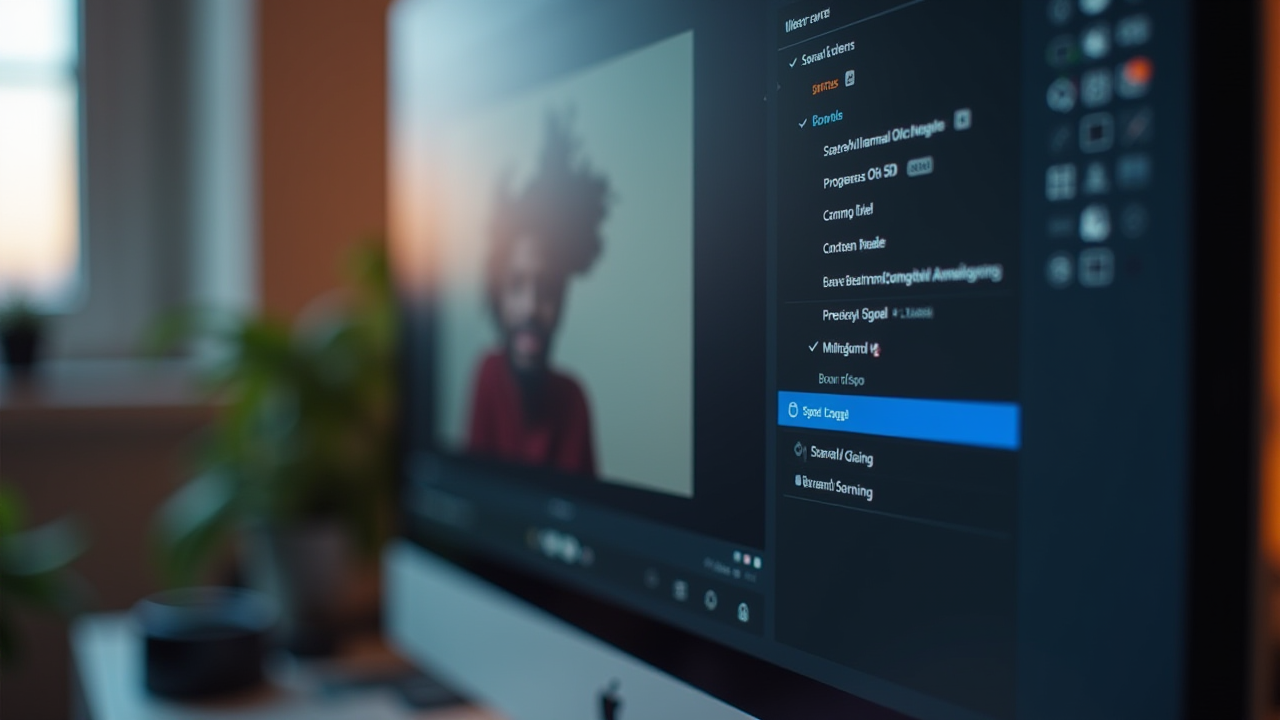
A browser source is a specific kind of source that loads a webpage inside your scene. From the OBS Browser Source documentation, browser sources let you display a webpage from the internet or a local file, and are commonly used for widgets and alerts. For an art stream, that webpage is usually a commission queue widget, a stream alerts feed, a chat box, or a countdown timer. Anything that lives on the web can, in principle, live on your stream through this mechanism.
The reason this matters for art streamers specifically: unlike gaming streams where the overlay sits at the edges of the game window, an art overlay has to coexist with a canvas that takes up most of the screen. The layout math is different, and getting it wrong either blocks the artwork or wastes screen space that viewers wanted to spend watching brush strokes.
The core setup is straightforward once you know which fields matter. Steps:
body { background: transparent; margin: 0; overflow: hidden; } unless your overlay provider already handles this. This forces the browser source background to be transparent so it stacks correctly on top of your canvas capture.Click OK, and the browser source will render inside the scene. If it loaded correctly, you will see the overlay content. If it loaded as a gray or blank rectangle, jump to the troubleshooting section below.
Positioning is where art streams diverge from gaming streams. On a gaming stream, the overlay typically sits along a top or bottom bar with the game filling most of the frame. On an art stream, the canvas capture is the main content, and the overlay has to fit around it without covering the drawing.
Practical placement rules for an OBS overlay for art commission streaming:
Once the size and position are dialed in, right-click the browser source, select Transform, and lock the position so an accidental drag during a stream does not move it.
By default, a source lives in one scene. If you built the overlay in Main Canvas but also want it visible in Starting Soon or Be Right Back, you have two options.
Option 1: Add existing source. Right-click the browser source in Main Canvas, choose Copy. Go to the target scene, right-click in the Sources panel, choose Paste (Reference). This creates a linked reference, not a duplicate, so changes to one propagate to all. Recommended.
Option 2: Add as duplicate. Paste (Duplicate) creates a copy that lives independently. Useful only if you need scene-specific variants; usually creates maintenance headaches down the line.
For an overlay you want everywhere without thinking about it, add it to a Scene Collection's global source rather than each individual scene. In OBS 28 and later, you can also nest scenes: create a scene called "Overlays" that contains all your overlay sources, then add the Overlays scene as a source in each streaming scene. Update it once, and every scene using it reflects the change.
The browser source is one of the more common places OBS setups break. The usual suspects:
Blank or gray box instead of the overlay. The URL loaded but the page did not render, or the overlay JavaScript is waiting for connection data. Right-click the source, choose Interact, and check the browser console (right-click inside the interact window and select Inspect Element) for errors. Most commonly this is an authentication issue with the widget provider or a missing connection to a Twitch/YouTube account.
Overlay flickering or disappearing between scenes. Uncheck "Shutdown source when not visible" for that source. This forces the browser source to stay loaded even when the scene is inactive, which prevents the reload flicker.
Transparent parts showing as black. The overlay page probably has a background color set somewhere. Add html, body { background: transparent !important; } to the custom CSS. If that does not fix it, the widget may not support transparency and you will need a different overlay tool.
Overlay showing at wrong resolution. The browser source width and height must match the actual dimensions of your overlay design. If the overlay page was designed for 400x200 pixels but the browser source is 1920x1080, the content will render at 400x200 in the top-left with wasted space. Match the source dimensions to the overlay design and scale in the Transform tool if needed.
Overlay does not update with new commission data. Some overlay widgets refresh on a timer. Others require an explicit refresh signal. Check the widget provider's docs. If nothing works, adding "Refresh browser when scene becomes active" plus a scene-switch on stream forces a reload.
The URL you feed into the browser source has to come from somewhere. Free options include StreamLabs, StreamElements, and Fossabot for basic alerts, chat, and follower notifications. These have all been around long enough to be broadly reliable, but their commission-specific widgets are limited or nonexistent. For an actual commission queue that shows what you are currently drawing, where new commissions land, and where viewers can buy in, you need a widget from a platform that treats commissions as first-class objects.
Which platform you use directly affects what overlay endpoints are available. For context on how commission platforms differ on this and other operational features, see where you take commissions shapes what overlay endpoints are actually available. For more resources on setting up the streaming side of a commission practice, browse the more Studio Queues resources for streamer artists.
An OBS overlay for art commission streams is a browser source pointed at an overlay URL, sized to match your stream output, and positioned to sit alongside your canvas capture without covering the drawing. The six-step setup takes ten minutes once you know which fields matter. Most breakage comes from three places: transparency not being handled correctly, source sizing not matching the overlay's design dimensions, and scene switching reloading the overlay when you did not want it to.
Build the overlay in Main Canvas first, dial in position and size against a real drawing session, then propagate it across your other scenes with Paste (Reference) or a nested Overlays scene. Lock the transform once you are happy with placement so nothing shifts mid-stream.
If you want a commission queue overlay that plugs directly into your OBS setup and updates live as new commissions come in, you can lock in 0% platform fees while founding artist spots are still open. The founding artist program keeps 0% platform fees active for as long as your premium subscription stays active, and only the first 500 spots are available. Payment processing fees (Stripe) still apply the same way they would on any platform.