Studio Queues Team · Last updated July 17, 2026
Art time lapse stream recording guide: Procreate and Clip Studio built-in features, OBS local recording, aspect ratios and settings for short-form platforms.
An art time lapse stream produces some of the most versatile content in a streamer artist's toolkit. Full stream footage is long and hard to reuse. A time-lapse compresses a full commission session into a 30-second or one-minute clip that lives natively on Twitter, TikTok, YouTube Shorts, and Instagram Reels, all without you doing dedicated content production work. It also functions as portfolio material for clients, as proof-of-process for delivery, and as promotional material for future commissions. This guide covers what time-lapses are actually used for, the built-in time-lapse features in the main drawing software, how OBS local recording fits alongside those, and practical settings that produce clips you can actually use.
Time-lapses solve a specific content problem for streamer artists: the streaming session itself is high-value in the moment and low-value as reusable material. Nobody outside your live audience is going to watch a five-hour art stream VOD. But a 45-second time-lapse of the same commission is content that plays cleanly on every short-form video platform.
Practical uses:
The tools most streamer artists use already have time-lapse features. No third-party software is required if you are drawing in one of the main programs.
Procreate. Per Procreate's official handbook video documentation, time-lapse recording is enabled by default on every canvas. Every action you take on the canvas (except undo actions) is captured as a frame. To export, tap Actions → Video → Export Time-lapse video, then choose between Full length (variable length, full process) and 30 Seconds (algorithmically compressed highlights). Recording settings up to 4K resolution and Lossless quality are configurable at canvas creation time, though these settings cannot be changed mid-project.
Clip Studio Paint. Per the official Clip Studio Paint timelapse documentation, timelapse recording is enabled by checking Record timelapse when creating a new canvas or through Edit → Canvas Properties on an existing file. Export is via File → Timelapse → Export timelapse, with length options of 15 seconds, 30 seconds, 60 seconds, or All, and resolution options of 1280px, 1080px, or 720px. Multiple aspect ratios are available (16:9, 4:3, 1:1, 4:5, 9:16, Original) which is useful for producing different clips for different platforms without re-recording.
Krita. Krita has a time-lapse feature via its recording tools, though the setup involves more manual configuration than Procreate or Clip Studio. Free and open-source, so worth mentioning for artists on that tool chain.
The built-in features are usually the right first choice because they capture the drawing app's actions directly rather than screen video. This means clean output without picking up other on-screen elements (your chat, your reference images, your Discord notifications).
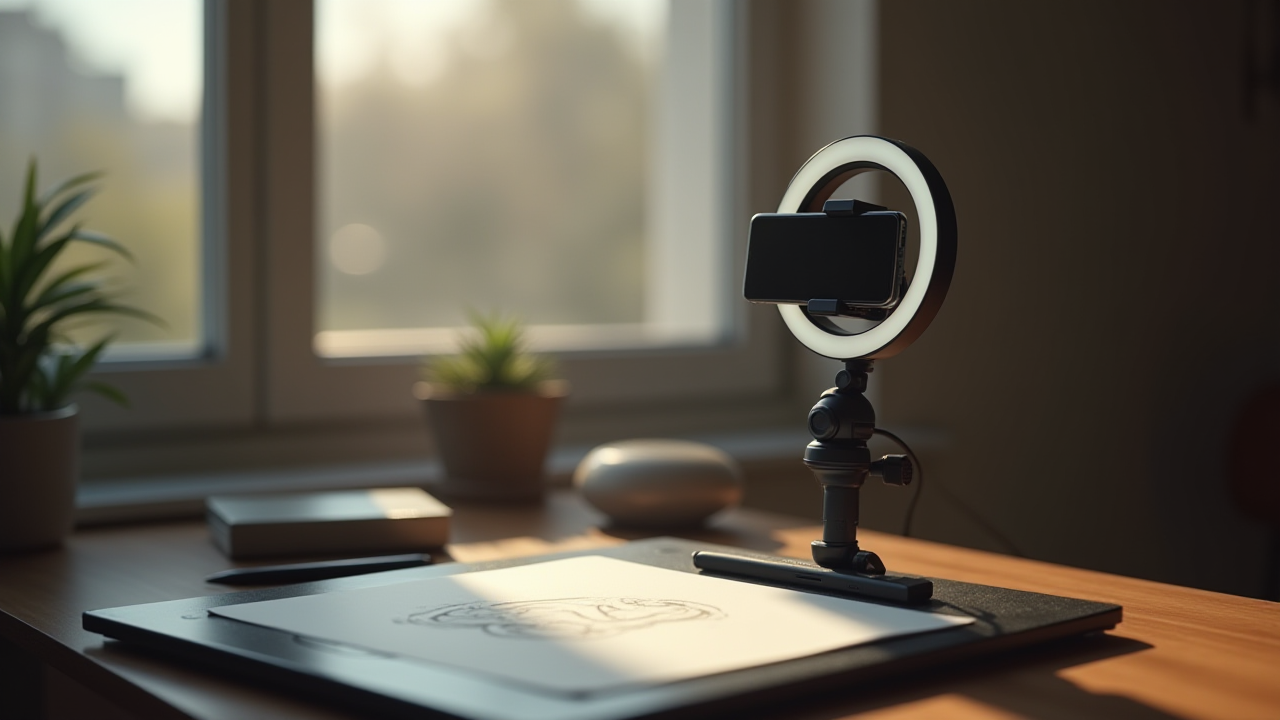
If your drawing app does not have built-in time-lapse, or if you want to capture the full stream (including your camera, overlay, and chat interaction), OBS local recording is the workhorse alternative. Recording your stream locally at the same time you are broadcasting is a standard practice and does not require additional configuration once OBS is set up. For the foundational OBS setup that this builds on, see the OBS setup basics for art streams.
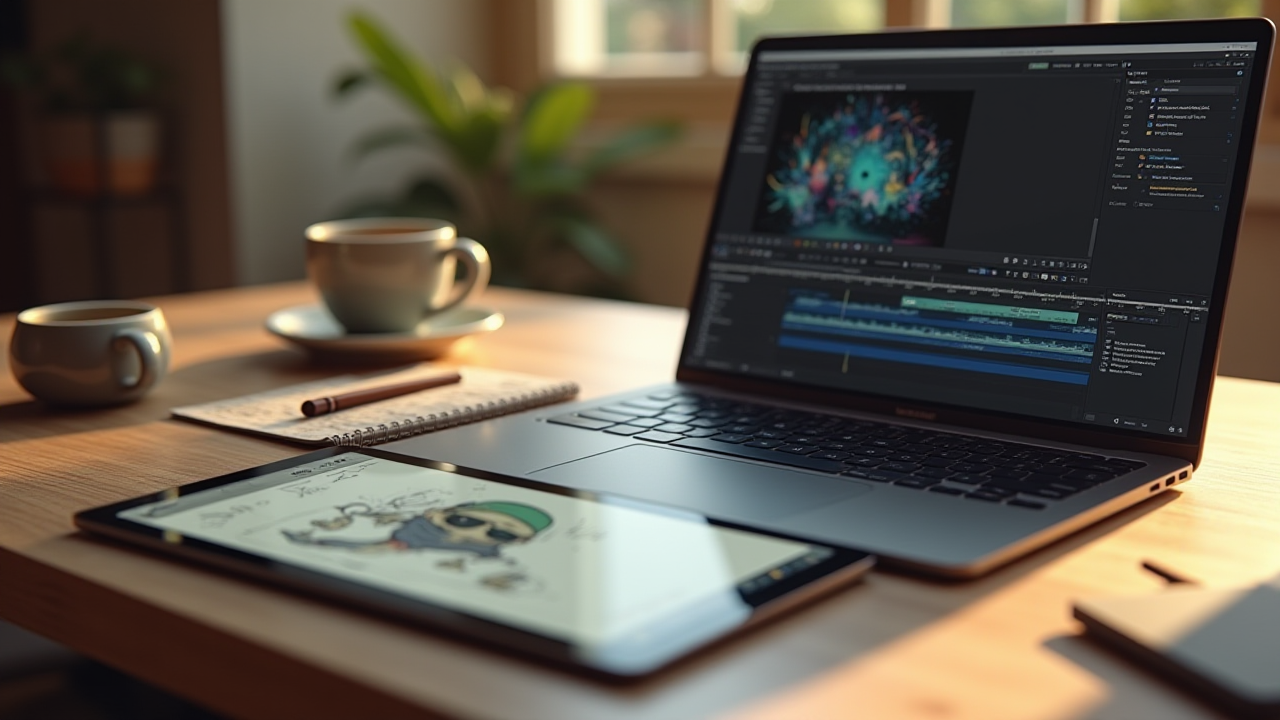
The workflow for producing an art time lapse stream clip from OBS footage:
The benefit of this approach over the built-in feature is control over what appears in the clip. The tradeoff is more manual work per clip. Many streamer artists use both: built-in time-lapse from the drawing app for the clean drawing-only clip, and OBS-recorded footage for behind-the-scenes or narrated content.
A few settings choices affect how usable the final clips are:
Time-lapse production sits well in the streamer artist workflow because it is a byproduct of work you are already doing rather than net-new content production. You draw on stream. The tools record automatically. You export at end of session. Fifteen minutes of post-stream export work produces content for the next week on multiple platforms.
The trap to avoid is treating time-lapse production as a separate project. Artists who set aside dedicated time to "make short-form content" often burn out on it fast. Artists who treat time-lapse as a five-minute export step after each stream produce more content over the long term with less friction. For the broader workflow context, see how time-lapse fits into a streamer's broader content workflow.
An art time lapse stream produces some of the most efficient content in a streamer artist's toolkit because it is a byproduct of drawing work you are already doing. Procreate and Clip Studio Paint have built-in time-lapse features that capture cleanly from the drawing app itself. OBS local recording works alongside those for full-scene captures. Practical settings (1080p, 30 to 60 seconds, aspect ratios matched to target platform) produce clips you can actually use. Five to fifteen minutes of post-stream export work produces content for the following week across multiple platforms.
If you want a workflow platform where the streaming, queue, staged payouts, and content workflows all fit together with less operational overhead, you can lock in 0% platform fees while founding artist spots are still open. The founding artist program keeps 0% platform fees active for as long as your premium subscription stays active, and only the first 500 spots are available. Payment processing fees (Stripe) still apply the same way they would on any platform.